
CelSector Controls: Keyboard, Mouse and Controller
CelSector's default keyboard and mouse layout, what the controller support actually covers, and the four settings that change how the game feels.
Quick answer: CelSector uses the standard side-scroller layout on keyboard and mouse: WASD to move, mouse to aim and fire, Space to jump, E to interact, number keys to switch guns and F1 to toggle auto-struggle. Controller support is labelled partial on Steam, and the v1.2 patch added gamepad aim assist. The pause menu is the authoritative bind list for your build.
The important part is not memorising a table. It is knowing which inputs the game expects you to use under pressure, because CelSector's combat is built around swapping weapons and breaking grabs rather than around a long list of abilities.
A weapon swap finishes faster than a reload. Put the three pistols on keys you can hit without looking.

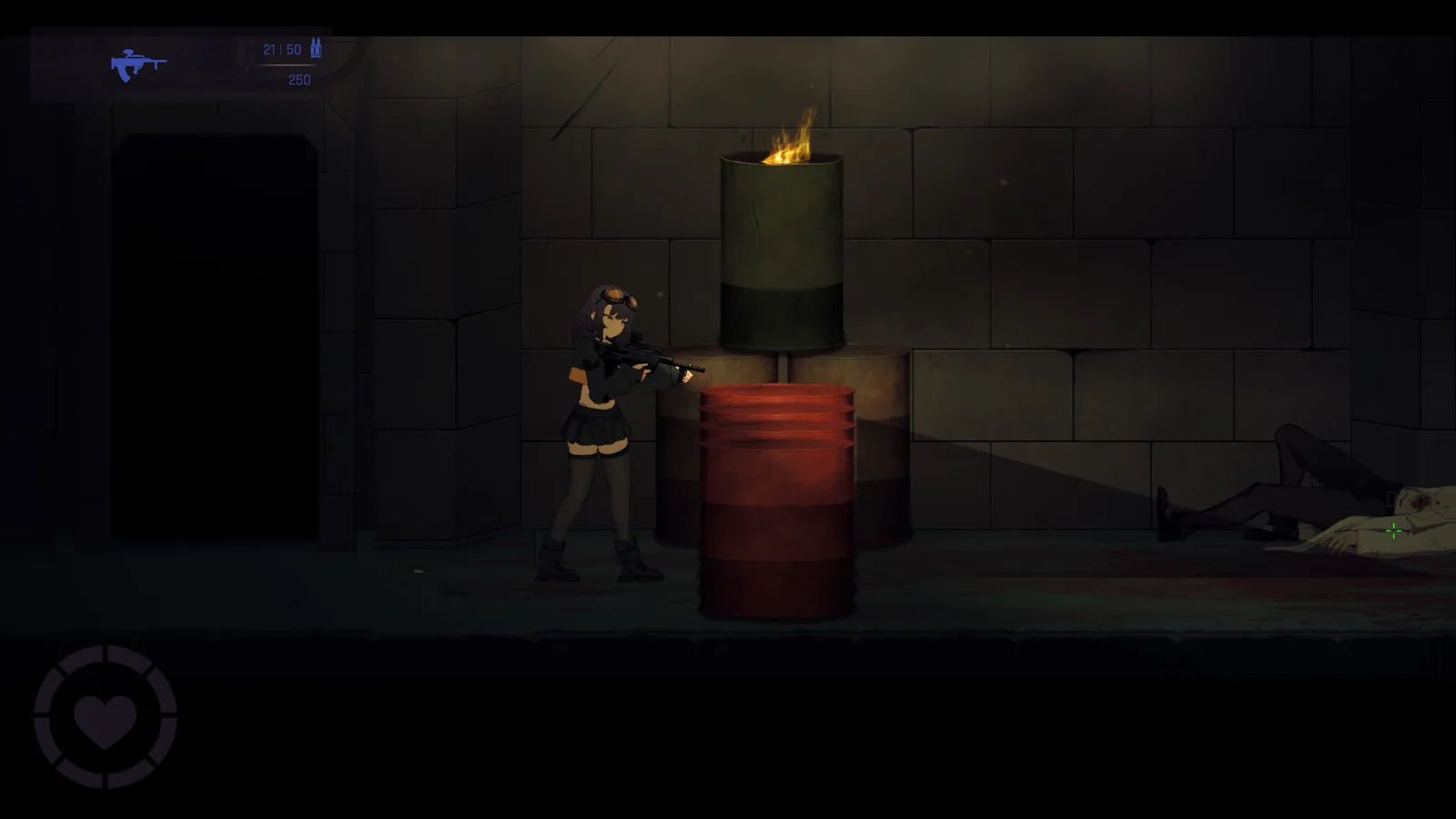
Keyboard and mouse defaults
| Action | Default input | Notes |
|---|---|---|
| Move | WASD or arrow keys | Arrow keys work as an alternative |
| Aim | Mouse | The reticle follows the cursor |
| Fire | Left mouse button | Hold for automatic weapons |
| Jump | Space | Used for ledges and parkour rooms |
| Interact | E | Doors, keycards, chests, save rooms |
| Switch weapon | Number keys | The shotgun sits on 3 in the default order |
| Reload | Reload key | Check the pause menu for your build's bind |
| Auto-struggle | F1 | Toggles the assist on and off |
| Pause / menu | Esc | Also opens the options menu |
Two of these are worth rewiring your habits around. First, the number keys are faster than the scroll wheel when a wasp is on top of you; learn the two or three slots you actually use. Second, F1 is a toggle, not a hold. If you turn auto-struggle on for a boss and forget, every later grab resolves without your input.
The game does not expose a deep remapping screen on every build. If your keyboard layout makes a default awkward, check the pause menu before you start a run; if the bind is fixed, plan around it rather than fighting it mid-sector.
Controller support: what actually works
Steam labels CelSector's controller support as partial, and that label is honest. The game is playable on a gamepad, and the itch.io demo advertises full controller support, but the menus and some interactions still expect a mouse on the Steam build.
The v1.2 patch added aim assist for gamepads. Turn it on if you are using a stick; turn it off if you are using a mouse, because the assist is tuned for analogue aiming and can pull your reticle off a head you were tracking deliberately.
A practical setup:
- Gamepad: aim assist on, auto-struggle on if the right-stick struggle input is uncomfortable, brightness up one notch.
- Mouse and keyboard: aim assist off, auto-struggle off while learning, mouse sensitivity low enough that you can track a wasp without overshooting.
The four settings that change the game
Brightness. Several chests sit in unlit corners, and the C1 light puzzle is much easier to read with a brighter image. Raise it until you can see the edge of a platform without squinting.
Auto-struggle. This is the accessibility option for the grab system. It resolves the struggle for you. It is a legitimate way to play, but it removes the timing layer the game uses to make grabs tense. Try it off for one sector, then decide.
Aim assist. Gamepad-only in practice. It helps with flying enemies and hurts precise headshots.
Language. Ten languages are supported, including English, Japanese, Simplified and Traditional Chinese, Korean, French, Spanish, Thai, Vietnamese and Filipino, with Russian also listed on Steam. Set it before your first save; the demo and full game share text settings.
How the controls map to combat
CelSector's fights are built around three inputs: move, fire and swap. The game rarely asks you to press a fourth button in a fight, which is why the controller layout works at all.
- Move is your defence. Most damage comes from standing still in a room with flyers or from walking into a web.
- Fire is your ammo decision. The pistol is free; everything else is a budget.
- Swap is your reload. Switching to a second gun is faster than reloading the first, especially with the revolver.
The combat tips guide→ turns those three inputs into room-by-room habits. If you are dying to grabs specifically, the grab and struggle page→ covers the escape loop and the outfit interaction.
Accessibility and comfort
The v1.2 patch added a brightness slider and gamepad aim assist, which are the two biggest comfort changes for new players. Auto-struggle covers the input-heavy part of the grab system. There is no colour-blind mode or subtitle size slider documented for this build, so if you need those, check the options menu on your version before buying.
The game is 2D and runs on modest hardware. If you are on a laptop, cap the frame rate rather than lowering resolution; the art is hand-drawn and soft at non-native resolutions.
FAQ
Can I rebind keys? The pause menu lists the live bindings. Deep remapping is not documented for every build, so check your version before relying on a custom layout.
Does the controller work in menus? Partially. Steam labels support as partial; some menu interactions still expect a mouse.
What does F1 do? It toggles auto-struggle, the assist that resolves grab escapes for you.
Is aim assist available on mouse? The setting exists, but it is tuned for gamepads. On mouse it can fight your aim rather than help it.
Sources
Official source: CelSector on Steam ↗ · CelSector demo on itch.io ↗ · Steam news and patch notes ↗